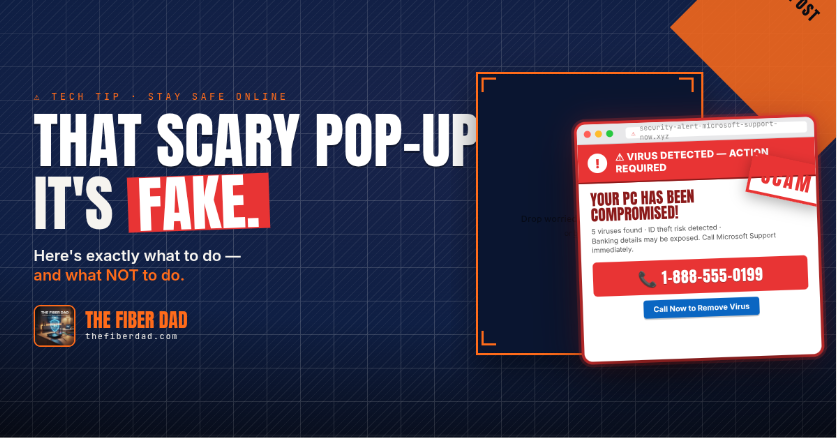
If you've ever been ambushed by a full-screen alert claiming your computer is infected and that you need to call a number immediately — you've encountered a tech support scam. These pop-ups are not real. They're fraudulent browser pages designed to cause panic and trick you into calling a fake support line or paying for a bogus fix.
What These Pop-Ups Actually Are
These alerts appear inside your web browser — not as genuine operating system notifications. They're just cleverly designed web pages that use loud sounds, fake virus scan animations, and scary language to get you to act without thinking. Legitimate companies like Microsoft, Apple, and Google will never contact you this way.
How to Spot a Fake Alert
- It appears inside your browser window, not as a system pop-up
- It asks you to call a phone number
- It contains poor grammar or spelling errors
- It claims to be from multiple companies simultaneously (e.g., "Microsoft and Apple detected a virus")
- It prevents you from closing the tab normally
What to Do Right Now
- Don't click anything on the page — not the X, not "OK", nothing
- Force-close your browser — press
Ctrl+Shift+Escon Windows orCmd+Option+Escon Mac, then end the browser task - Decline to restore previous tabs when you reopen the browser
- Run a scan with a legitimate antivirus (Windows Defender is free and built-in)
- Clear your browser cache: press
Ctrl+Shift+Deleteand clear the last hour
If You Already Called the Number
- Hang up immediately if still on the call
- Change your passwords from a different device
- Call your bank right away if you shared any payment information
- Run a full antivirus scan before using your computer again
The Golden Rule
Real security alerts don't come with phone numbers. Microsoft, Apple, and Google will never call you unsolicited about a problem with your computer. If you see a phone number in a "warning" — it's a scam, 100% of the time.